

When you would use it
You are working on something that involves a dozen people across a few companies. Instead of keeping them in your head or a spreadsheet, you put them in a Circle, and every time you open it you see who has notes, who has a reminder due, and what has changed.Where to find it
Select Circles in the sidebar. The address is/circles.
Inside a Circle
Open a Circle to see its Overview. The buttons beside the title switch between four views: Overview, People (every member, with search, Filter and Export), Map (how the members connect) and Signals (recent changes for the Circle’s members).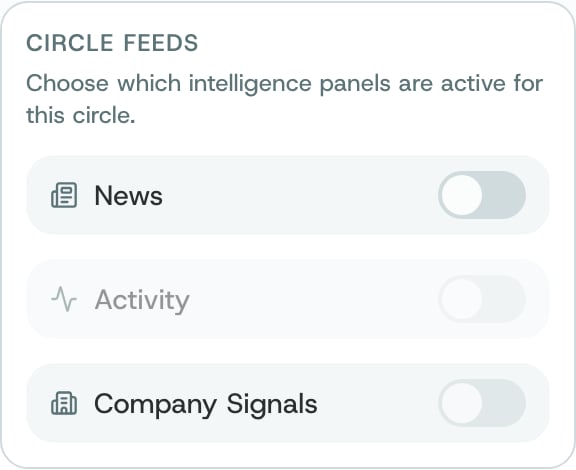
Feed settings: the panels you can turn on for a Circle
How to
1
Create a Circle
Choose Create Circle, give it a name that says what it is for, and add people. You can also ask O in your own words, or use
/add-to-circle in Ask O.2
Add people from a spreadsheet
Open the Circle and choose Import CSV/XLSX.
3
See what needs attention
Open the Circle’s Overview. Start with Follow up next, then look at Relationship context to see which members O knows little about.
4
Build context
Choose Open Notes to write what you know, or set a reminder for a member. Both count towards Relationship context.
5
Follow changes
In Feed settings, turn on the panels you want, then check Signals for recent changes.
6
Ask about the group
Choose Ask O what matters to ask about this Circle in Ask O.
What O does behind it
- A Circle is yours. It is your way of organising people. It does not mean they have joined a group together, and they are not told.
- Private until you share it. A lock in the list marks a private Circle. Circles shared with you show who shared them under Shared by. Friends see your Circles only if you turn on Circles in their access settings.
- Evidence, not guesses. Coverage and follow-ups come from your notes, your reminders and the signals O can see. Where O has nothing, the page says so.
Exports contain people’s details. Export CSV downloads member information. Keep the file somewhere safe, and delete it when you no longer need it.
Related
Create or edit a Circle
Name a Circle, choose its members and decide how private it is.
Open and manage a Circle
The People, Map and Signals views in more detail.
Friends and sharing
Share a Circle with people you trust.
Notes
Keep what you know about the people in a Circle.