

When you would use it
Before a meeting, when you want the context on everyone in the room. When you need a warm way into a company or a fund. When you want to know who in your network knows a market you are entering. You ask the way you would ask a colleague who knows everyone you know.Where to find it
Select Home in the sidebar. The address is/home. On any other page, choose Open Ask O in the top bar to open it beside what you are doing; see Open the Assistant from anywhere.
Under the box, O reminds you: AI can make mistakes. Check important info.
Mention people and companies with @
Type@ and the start of a name, then choose from the list. O then knows exactly who or what you mean, even when two people share a name. You can mention a person, a company, a note or a Circle.

Type @ and a name in the message box
Start a specific job with /
Type/ to see the commands, grouped as Explore, Prepare, Organize, Automate and Open. A command tells O what kind of help you want, for example /person for a deep dive into one person or /intro to find a warm intro path. Every command is listed in Ask O commands. You can always write in your own words instead.
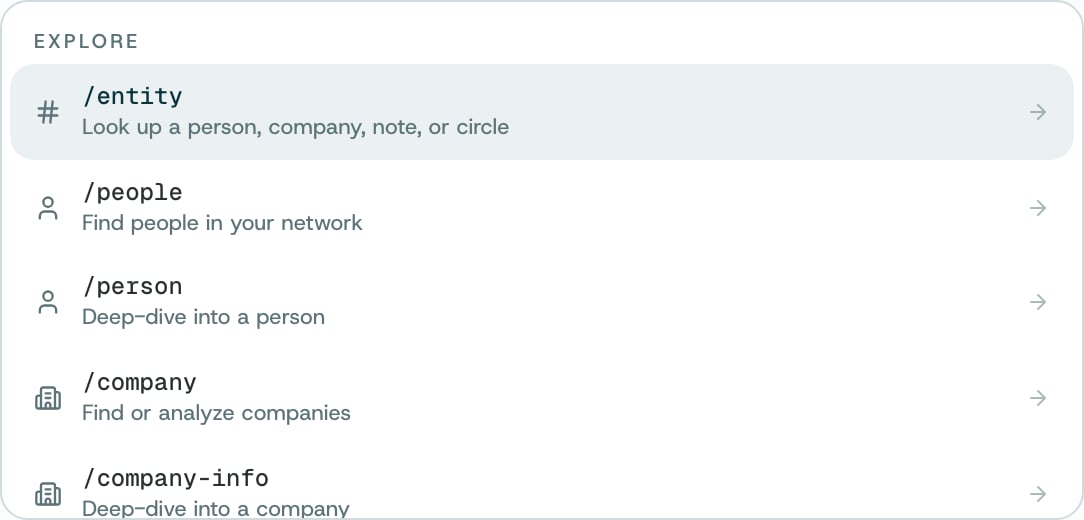
Type / in the message box
How to
1
Ask your question
Write what you want to know and what you are trying to do. A name, a little background or the outcome you want all help. For example: Who in my network knows people at Northwind, and how do I know them?
2
Point O at the right people
Mention people and companies with
@, so O does not have to guess who you mean.3
Read the answer and check it
When an answer includes a list or a document, select it to open it beside the conversation. On a larger screen, drag the divider to give either side more room. Check important details before you rely on them.
4
Keep what matters
Ask O to remember a follow-up: Remind me to call Sarah tomorrow at 3pm. Reminders appear in Notifications → Reminders.
5
Start over or pick up again
Choose New chat for a different topic, or History to return to an earlier conversation.
Ask O to keep an eye on something
Tell O what to follow, in your own words:Keep an eye on Acme’s launch.O follows the topic and shares an update in O when there is new information. To stop:
Stop tracking Acme’s launch.Updates need Follow-up updates turned on. See Proactive follow-ups.
What O does behind it
- It answers from your network. O works with the people, companies, notes and sources you have connected or imported, and, if you choose to include them, networks that friends have shared with you.
- It prepares; you decide. Writing a draft does not send it to anyone. Whether and how you reach out is always your choice.
- It can be wrong. O can make mistakes. Check important facts, and the sources an answer gives, before you act on them.
Availability and privacy. O works with the information and features available to your account. Your conversations are listed under History, where you can delete any of them.
Related
Ask O commands
Every slash command and the keys that help you move around.
The Ask O menu
Use cases, with prompts ready to copy.
Open the Assistant from anywhere
Ask O beside any page.
Find your way around
The sidebar, the page path and the top bar.