

When you would use it
Use it after a large import, or before a week of meetings. It helps you see whether you reach too much of your network through just one or two people, whether O knows enough about your connections to help you, and which relationship is worth an hour this week.Where to find it
Select Insights in the sidebar, then the Network Health tab.Health by factor
Further down, each factor has its own card. Open How this is calculated (on Connection Paths it’s called What is included) to see how the number is worked out and what information it uses.What each factor measures
Yours vs ICP peer avg. on Network Reach compares the size of your network with the average for people in roles like yours. It appears next to the score and never changes it.
People with context notes on Context Coverage counts the people you have written notes about. The eight details also include profile information, so the two numbers can differ.
Next moves and how your network is changing
Add context while it is fresh
O lists people you connected with recently and asks how you know them. Choose Add context to write it down while you still remember. It’s saved as a note on that person.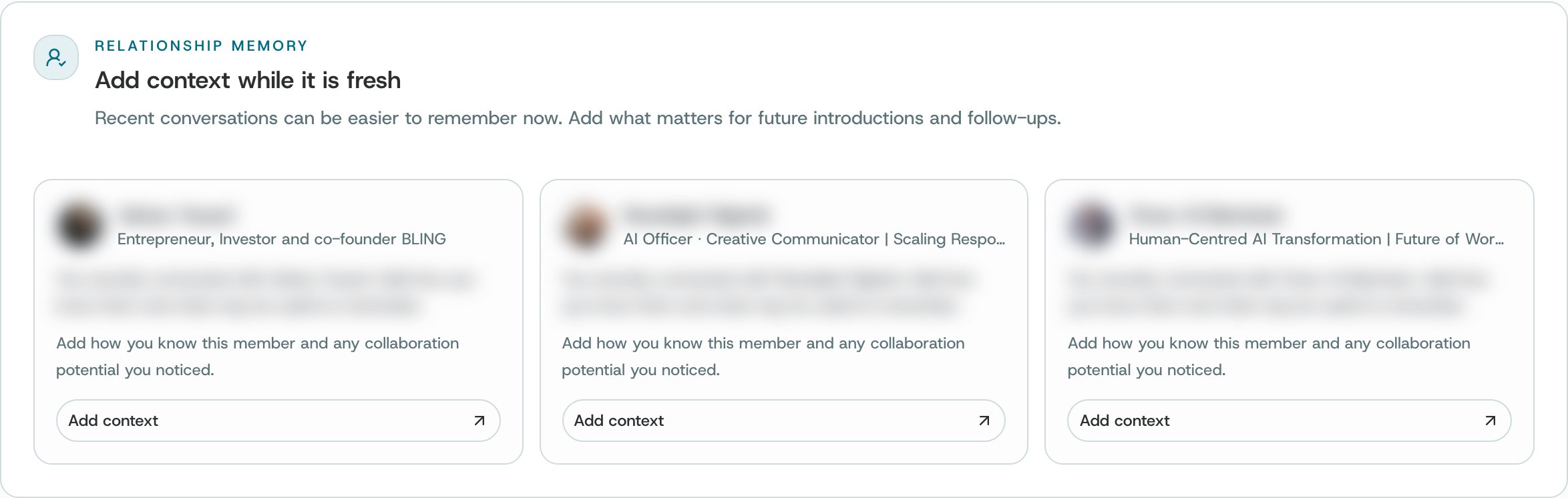
Add context while it is fresh. Other people's names and photos are blurred.
Where your network is strongest
This section shows the industries, locations, seniority levels and skills that are most common in your network. Each tile shows the most common one, and its share of the connections where O knows that detail. Below it, Key connectors to nurture lists people that many of your measured paths run through. Key connectors opens the full list in Connectors.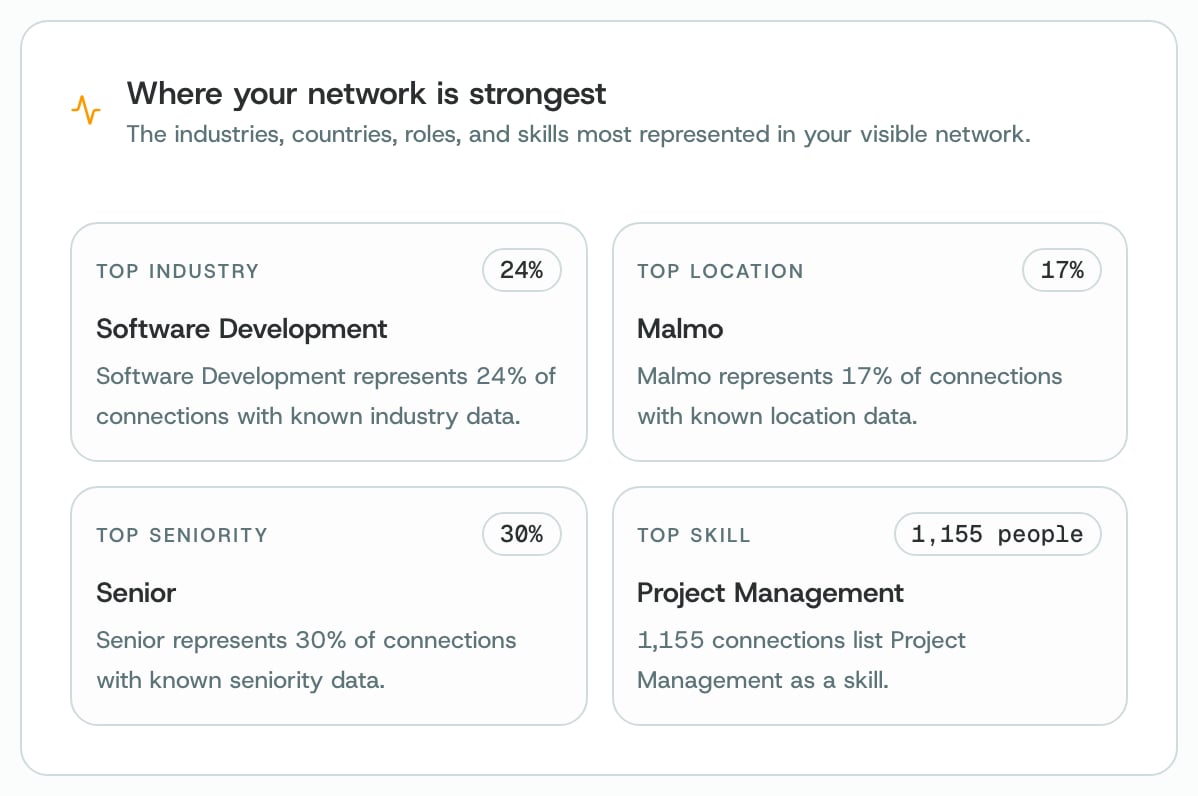
Where your network is strongest
How to
1
Set a personal reach target
Choose Edit relationship goals, or Set a personal target on the Network Reach card. In Settings → Goals, enter your target. Network Reach then shows your progress towards it.
2
Give O more context
Choose Review recent connections on Context Coverage, or go to Add context while it is fresh. Choose Add context next to a person and write how you know them. Notes are one of the details Context Coverage checks.
3
Reveal more paths
On Connection Paths, choose Reveal more paths. If you have the O browser extension, open a LinkedIn profile and use Warm Path. It adds to O the connections it sees there: people you both know, and second-degree and third-degree connections.
4
Act on a suggestion
Under Relationship to strengthen or Your next best moves, open a suggestion. You decide whether to reach out. O never contacts anyone for you.
5
Refresh after a change
After an import, or after you connect a new account, choose Refresh so the measures use the new information.
What O does behind it
- The four measures are separate. Each score stands on its own, and O doesn’t combine them into one number.
- Missing information is shown as unavailable, not counted as zero. A zero means O checked a source it could use and found none. A dash means that source wasn’t available.
- Connection Paths lists what O can see. Its groups may overlap, and they are never added up into a total.
- O only measures the information you have connected or imported. You can also read how it’s worked out on the page itself, under Data coverage and methodology.
Good to know. A missing result may mean there isn’t enough information. It doesn’t mean a relationship doesn’t exist, and nothing on this page scores a person.
Related
Connectors
The people who connect separate parts of your network.
Goals
Set your relationship goals and your personal reach target.
Field Mode
Save what you just learned about someone.
Insights overview
The briefing at the top of Insights.