

Where to find it
Open Settings → Chat.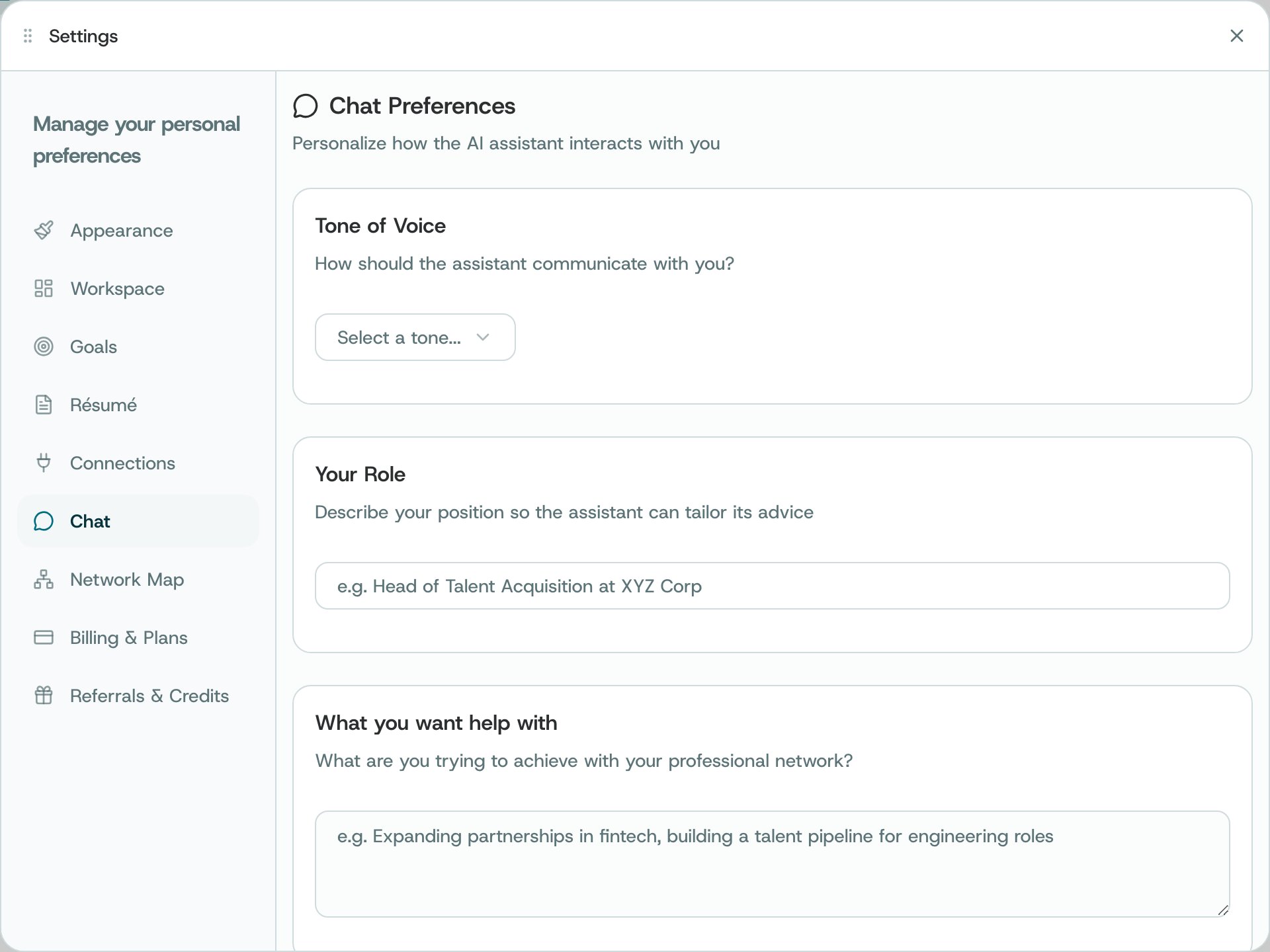
Settings → Chat
What you can do
- Choose a tone such as Professional, Casual, Friendly, or Direct.
- Describe your role or networking goals when you want that context available to O.
- Review speech-to-text and follow-up preferences before turning them on.
- Watch for the Saving and Saved indicators after changing a text field.
How to use it
- Keep personal notes appropriate for the assistance you request.
- Read each preference description before changing it, especially scheduled or proactive follow-ups.
- Start a new chat when you want a separate conversation; changing tone does not grant access to new data.
Proactive follow-ups
Choose topics you want O to revisit. When O finds new information on one of them, it shares an update with you in O.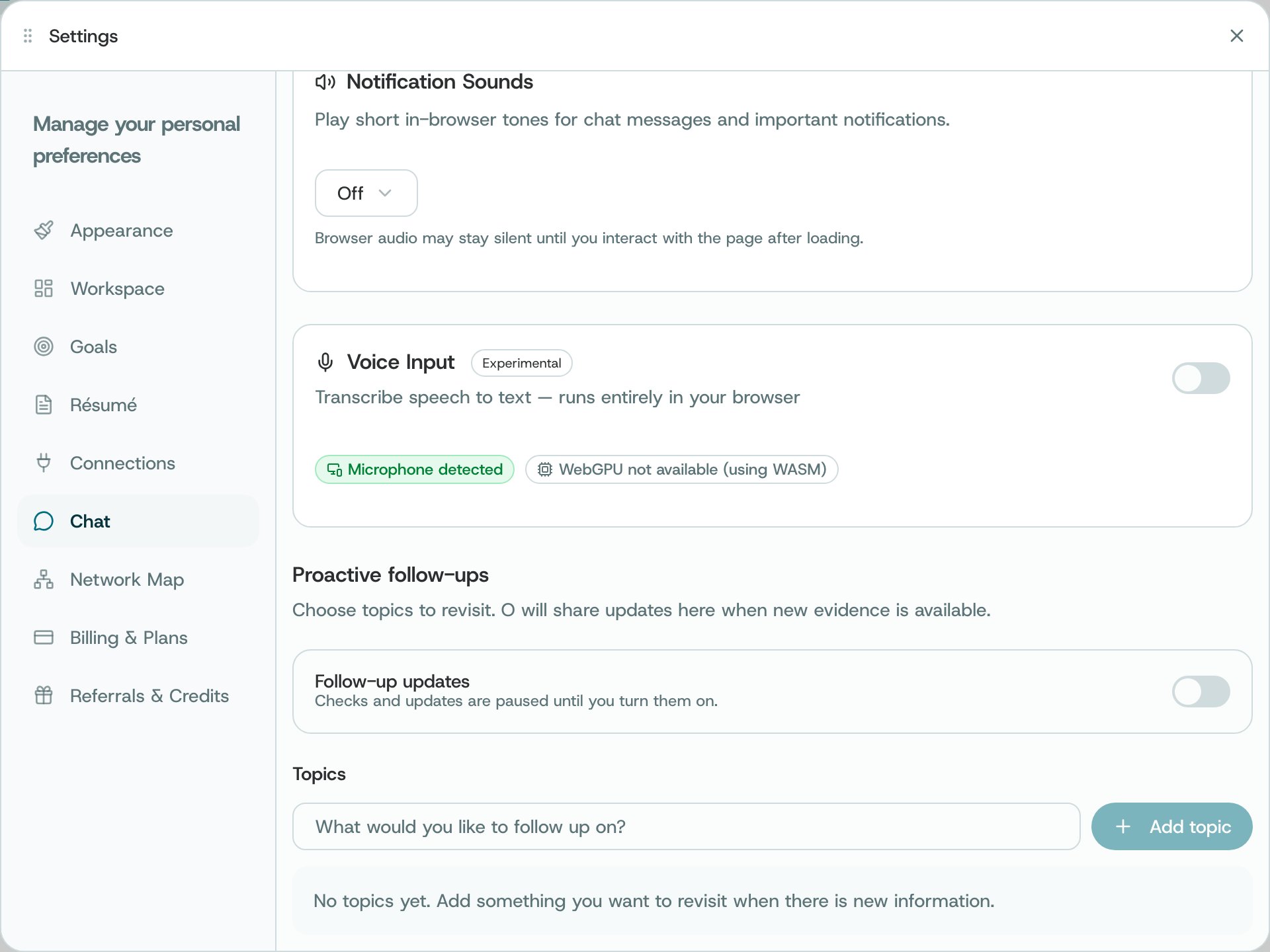
Settings → Chat → Proactive follow-ups
1
Turn on follow-up updates
Open Settings → Chat and turn on Follow-up updates. Checks and updates stay paused until you do.
2
Add a topic
Under Topics, choose Add topic and describe what you want to follow, for example a company’s product launch.
Availability and privacy. Preferences affect chat behavior but do not expand data permissions. Exact options can vary by account.