> ## Documentation Index
> Fetch the complete documentation index at: https://docs.sumbios.ai/llms.txt
> Use this file to discover all available pages before exploring further.
# Reminders
> Keep track of the follow-ups you want to make time for.
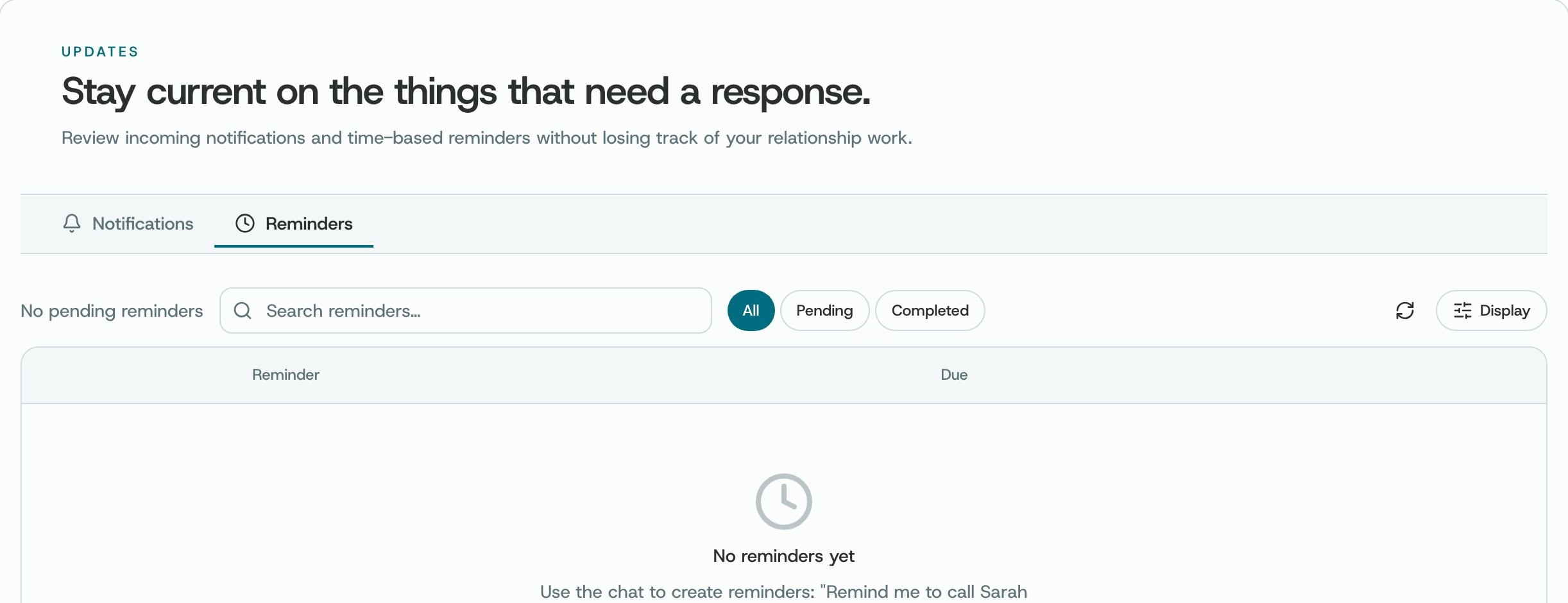
See when each reminder is due and who or what it's about. Open one to check your next step.
## Where to find it
In Notifications, open the Reminders tab.
 ## What you can do
* Check when a reminder is due and which person or task it's about.
* Open a reminder to read the details or mark the follow-up as complete.
* Snooze, complete, edit or delete a reminder with the options shown on it.
## How to use it
* Before you act, check who the reminder is about and what you planned to do.
* If your plan changes, update the due date so the reminder stays accurate.
* Use the link in a reminder to go straight to the item it's about.
**Good to know.** Your reminders are personal information in your workspace. Some actions may not be open to you, depending on who owns a reminder and what you're allowed to do.
This documentation is built and hosted on [Mintlify](https://mintlify.com), a developer documentation platform.
## What you can do
* Check when a reminder is due and which person or task it's about.
* Open a reminder to read the details or mark the follow-up as complete.
* Snooze, complete, edit or delete a reminder with the options shown on it.
## How to use it
* Before you act, check who the reminder is about and what you planned to do.
* If your plan changes, update the due date so the reminder stays accurate.
* Use the link in a reminder to go straight to the item it's about.
**Good to know.** Your reminders are personal information in your workspace. Some actions may not be open to you, depending on who owns a reminder and what you're allowed to do.
This documentation is built and hosted on [Mintlify](https://mintlify.com), a developer documentation platform.