> ## Documentation Index
> Fetch the complete documentation index at: https://docs.sumbios.ai/llms.txt
> Use this file to discover all available pages before exploring further.
# Friends and sharing
> Share parts of your network with people you trust, and search what they share with you.
export const Annotated = ({src, alt, caption, markers = [], size}) =>
{markers.map(m =>
{m.n}
)}
{caption ? {caption} : null}
;
Friends are other people using O whom you trust. For each friend you choose what they can see of yours, and they choose what you can see of theirs.
## When you would use it
You and a co-founder, a partner or a close colleague each know different people. When you share your networks, each of you can search the other's before asking for an introduction, and a person's profile shows which of your friends also know them.
## Where to find it
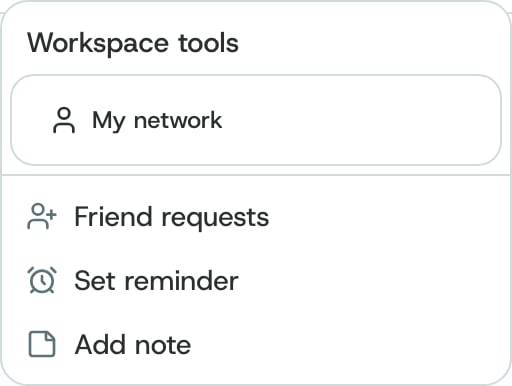
Select **Network** in the sidebar, then the **Friends** tab. The address is `/network/friends`. You can also open **Friend requests** from **Open workspace tools** (**···**) in the top bar.
| # | Element | What it does |
| - | - | - |
| 1 | **Friends** | The Friends page, beside **Network Map** in Network. |
| 2 | **Friends**, **Requests**, **Find Friends**, **Groups** | Your friends; friend requests waiting for you; people who already use O; and groups of friends you can give access to at once. |
| 3 | **View profile** | Opens your friend's profile. The arrow beside it opens or closes their access settings. |
| 4 | **Access for** your friend | What this friend can see of yours, one switch per area. |
| 5 | **Network** | Lets this friend search your network. **Circles** and **Notes** share those areas the same way. **Workspaces** and **Missions** do the same for those areas. |
| 6 | **Shared with you** | What this friend shares with you. It reads **Not shared** until they turn sharing on for you. |
## How to
Open **Find Friends** to see people who already use O, and choose **Add Friend**. The request shows as **Pending** until they accept it.
Requests sent to you appear under **Requests**. Accept the ones from people you trust.
On the **Friends** tab, open a friend's access settings with the arrow beside **View profile**. Turn on only the areas you want to share, for example **Network**.
Open **Open workspace tools** (**···**) in the top bar and choose which networks to include: yours, a friend's shared network, or both. Your searches then include the networks you selected.
On **Groups**, choose **New Group**, add friends, and set the group's access once.
Turn a switch off when you no longer want to share that area with that friend.
## What O does behind it
* **Per friend, per area, one way.** Each switch covers what one friend can see of yours. What they share with you is their choice, shown under **Shared with you**.
* **Search, with permission.** When you share **Network** with a friend, they can search your network. Nothing is shared until you turn a switch on.
* **Mutual connections.** Once you are friends, a person's profile shows which of your friends also connect to that person, under **Mutual connections**. It helps you see who could give you an introduction.
* **Friends count as paths.** On [Network Health](/insights/network-health), **Connection Paths** counts your active **O friends** as one of the paths beyond your direct network.
**Shared data belongs to the person who shared it.** Use it to decide who to ask for an introduction, and do not pass it on without their permission.
## Related
Search your network, and a friend's when they share it.
See how your paths beyond your direct network add up.
Keep groups of people together for one purpose.
Universal search and the workspace tools in the top bar.
This documentation is built and hosted on [Mintlify](https://mintlify.com), a developer documentation platform.
 ## What O does behind it
* **Per friend, per area, one way.** Each switch covers what one friend can see of yours. What they share with you is their choice, shown under **Shared with you**.
* **Search, with permission.** When you share **Network** with a friend, they can search your network. Nothing is shared until you turn a switch on.
* **Mutual connections.** Once you are friends, a person's profile shows which of your friends also connect to that person, under **Mutual connections**. It helps you see who could give you an introduction.
* **Friends count as paths.** On [Network Health](/insights/network-health), **Connection Paths** counts your active **O friends** as one of the paths beyond your direct network.
## What O does behind it
* **Per friend, per area, one way.** Each switch covers what one friend can see of yours. What they share with you is their choice, shown under **Shared with you**.
* **Search, with permission.** When you share **Network** with a friend, they can search your network. Nothing is shared until you turn a switch on.
* **Mutual connections.** Once you are friends, a person's profile shows which of your friends also connect to that person, under **Mutual connections**. It helps you see who could give you an introduction.
* **Friends count as paths.** On [Network Health](/insights/network-health), **Connection Paths** counts your active **O friends** as one of the paths beyond your direct network.