> ## Documentation Index
> Fetch the complete documentation index at: https://docs.sumbios.ai/llms.txt
> Use this file to discover all available pages before exploring further.
# Circles
> Keep the people and companies you need for one purpose together, and see what needs your attention in that group.
export const Annotated = ({src, alt, caption, markers = [], size}) =>
{markers.map(m =>
{m.n}
)}
{caption ? {caption} : null}
;
A Circle is a group of people and companies you keep together for one purpose: a deal, a project, a hiring search, a shared interest. Inside it, O brings together what you know about those people and what needs a follow-up.
## When you would use it
You are working on something that involves a dozen people across a few companies. Instead of keeping them in your head or a spreadsheet, you put them in a Circle, and every time you open it you see who has notes, who has a reminder due, and what has changed.
## Where to find it
Select **Circles** in the sidebar. The address is `/circles`.
| # | Element | What it does |
| - | - | - |
| 1 | **Create Circle** | Starts a new Circle. See [Create or edit a Circle](/network-and-circles/create-a-circle). |
| 2 | **Search Circles...** | Finds a Circle by name. |
| 3 | **Filters** | Narrows the list. **Display** on the right changes which columns you see, and the round arrow refreshes the list. |
| 4 | A Circle | Its name, **Description**, **Type**, **Members**, **Tags**, **Shared by** and when it was **Updated**. A lock means the Circle is private. Select it to open it. |
| 5 | Actions (**···**) | **Open**, **Edit**, **Discuss with friends** and **Delete** for a Circle you own. |
## Inside a Circle
Open a Circle to see its **Overview**. The buttons beside the title switch between four views: **Overview**, **People** (every member, with search, **Filter** and **Export**), **Map** (how the members connect) and **Signals** (recent changes for the Circle's members).
| # | Element | What it does |
| - | - | - |
| 1 | Views | **Overview**, **People**, **Map** and **Signals**. |
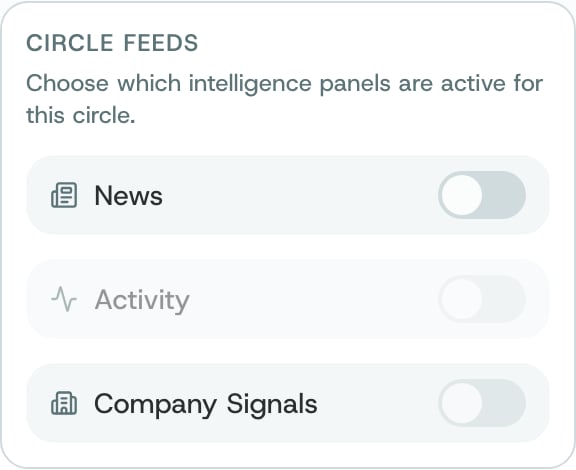
| 2 | **Feed settings** | Chooses which panels are active for this Circle: **News**, **Activity** and **Company Signals**. |
| 3 | **Import CSV/XLSX** | Adds people to the Circle from a spreadsheet. |
| 4 | Actions (**···**) | **Edit Details**, **Export CSV** and **Delete Circle**. See [Export or delete a Circle](/network-and-circles/export-or-delete-a-circle). |
| 5 | **Circle intelligence** | O brings together saved context, follow-ups and recent signals for the Circle. Missing evidence stays visible instead of being guessed. |
| 6 | **Ask O what matters**, **View people**, **Open Notes**, **Review signals** | Ask O about this Circle, or jump to its people, its notes or its signals. |
| 7 | **Relationship context** | The share of members for whom O has at least one note, reminder or recent signal. It does not mean O knows your whole history with them. |
| 8 | Counters | **Members** in the Circle, **Saved context** (members with notes), **Follow-ups** (pending reminders) and **Recent signals** (available changes). |
| 9 | **Follow up next** | Pending reminders first, then members with recent signals. |
| 10 | **Where this Circle works** | The companies the members work at. Beside it, **Where relationships are** shows their locations. |
## How to
Choose **Create Circle**, give it a name that says what it is for, and add people. You can also ask O in your own words, or use `/add-to-circle` in [Ask O](/getting-started/home).
Open the Circle and choose **Import CSV/XLSX**.
Open the Circle's **Overview**. Start with **Follow up next**, then look at **Relationship context** to see which members O knows little about.
Choose **Open Notes** to write what you know, or set a reminder for a member. Both count towards **Relationship context**.
In **Feed settings**, turn on the panels you want, then check **Signals** for recent changes.
Choose **Ask O what matters** to ask about this Circle in Ask O.
## What O does behind it
* **A Circle is yours.** It is your way of organising people. It does not mean they have joined a group together, and they are not told.
* **Private until you share it.** A lock in the list marks a private Circle. Circles shared with you show who shared them under **Shared by**. Friends see your Circles only if you turn on **Circles** in their [access settings](/network-and-circles/friends-and-sharing).
* **Evidence, not guesses.** Coverage and follow-ups come from your notes, your reminders and the signals O can see. Where O has nothing, the page says so.
**Exports contain people's details.** **Export CSV** downloads member information. Keep the file somewhere safe, and delete it when you no longer need it.
## Related
Name a Circle, choose its members and decide how private it is.
The People, Map and Signals views in more detail.
Share a Circle with people you trust.
Keep what you know about the people in a Circle.
This documentation is built and hosted on [Mintlify](https://mintlify.com), a developer documentation platform.
 ## How to